Local Domains Without Ports: Setting Up AdGuard Home + Nginx Proxy Manager in Homelab

🇺🇦 Читати цю статтю в оригіналі українською
When the number of services in a home laboratory (Homelab) starts exceeding three or four, the pain begins. Remembering dozens of addresses like 192.168.50.125:3000 (Grafana), 192.168.50.125:8080 (another service), or 192.168.50.67:32400 (Plex) becomes practically impossible.
It is much more pleasant to type simple and clean names in the browser: http://grafana.home, http://adguard.home, or http://truenas.home.
Today, we will deploy and link AdGuard Home (local DNS server) and Nginx Proxy Manager (reverse proxy) into a single system using Docker. This will allow you to forget about IP addresses and port numbers in your local network forever.
How Does This Setup Work?
The workflow is very simple and looks like this:
- You type the address
http://grafana.homein your browser. - Your computer asks the local DNS (AdGuard Home): “Where does this domain live?”.
- AdGuard Home answers: “It lives on the IP address of our proxy server (Ubuntu VM).”
- The request arrives at the proxy server (Nginx Proxy Manager) on the standard web port
80. - The proxy server looks at the domain
grafana.home, understands that this service runs on port3000, and silently redirects the traffic there for you.
Step 1. Deploying via Docker Compose
We will combine both services into one stack. To do this, we will create a dedicated working directory /opt/gateway on the server and run the following docker-compose.yml file:
1
2
3
4
5
6
7
8
9
10
11
12
13
14
15
16
17
18
19
20
21
22
23
24
25
26
27
version: '3.8'

services:
  adguardhome:
    image: adguard/adguardhome:latest
    container_name: adguardhome
    restart: unless-stopped
    volumes:
      - ./adguard/workdir:/opt/adguardhome/work
      - ./adguard/confdir:/opt/adguardhome/conf
    ports:
      - "53:53/tcp"
      - "53:53/udp"
      - "3002:3000/tcp" # Port for initial setup
      - "8080:80/tcp"   # AdGuard admin panel port

  nginx-proxy-manager:
    image: 'jc21/nginx-proxy-manager:latest'
    container_name: nginx-proxy-manager
    restart: unless-stopped
    ports:
      - '80:80'   # Standard HTTP web port
      - '81:81'   # Proxy admin panel
      - '443:443' # HTTPS port
    volumes:
      - ./npm/data:/data
      - ./npm/letsencrypt:/etc/letsencrypt
⚠️ Important Tip for Ubuntu Server:
By default, Ubuntu runs thesystemd-resolvedservice, which occupies port53(DNS). To allow the AdGuard container to launch, you need to disable the stub listener in the/etc/systemd/resolved.conffile (setDNSStubListener=no) and restart the resolver.
Step 2. Configuring AdGuard Home
After launching, open the initial setup wizard on port 3002 (e.g., http://192.168.50.125:3002), create a user, and navigate to the main dashboard.
 Fig. 1. AdGuard Home Authentication Page
Now we need to create a rule that routes all local domains to the proxy server.
- Go to the menu Filters -> DNS Rewrites.
- Click Add DNS Rewrite.
- Instead of adding each site manually, we will make a global wildcard record:
- Domain:
*.home - IP Address: The IP of your proxy server (e.g.,
192.168.50.125).
- Domain:
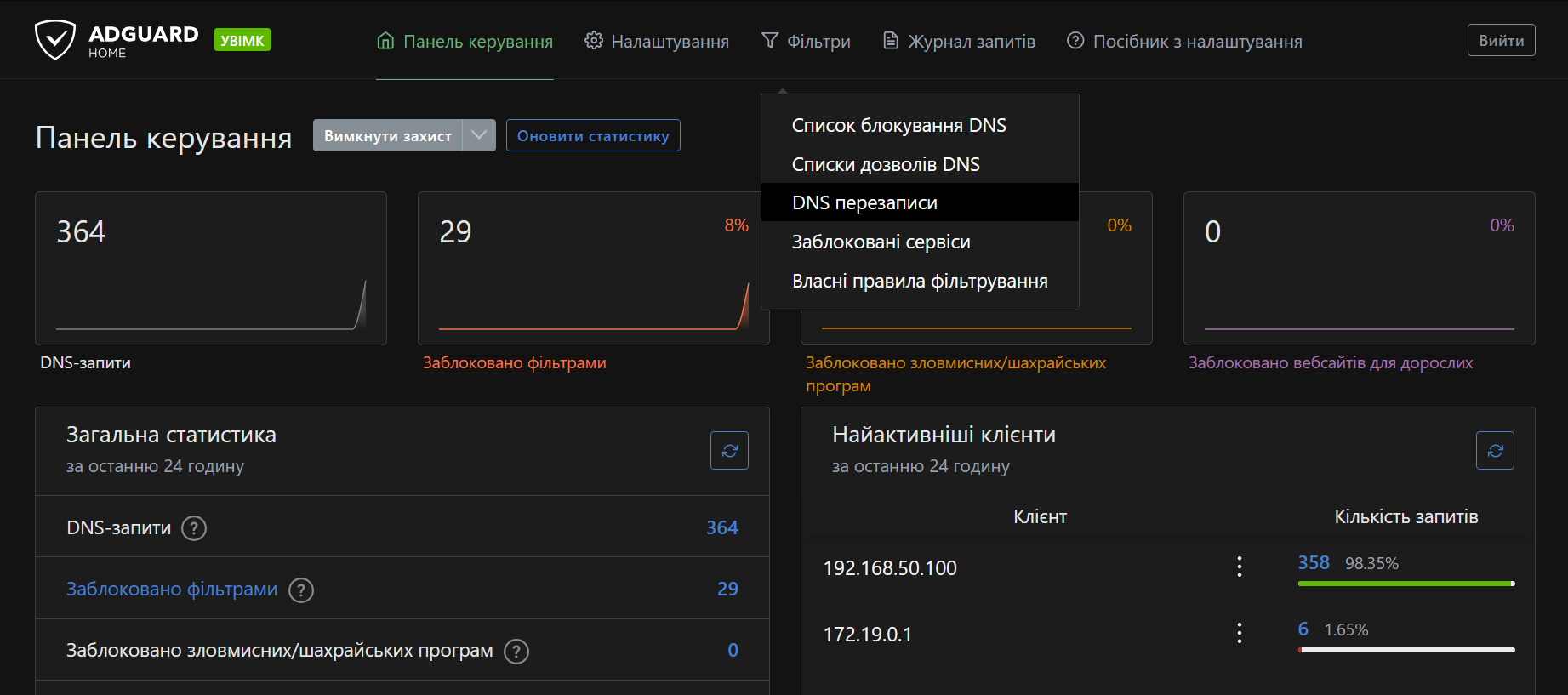 Fig. 2. Configuring DNS Rewrites in AdGuard Home
Now, any domain ending in .home (such as grafana.home or portainer.home) will be automatically resolved to the reverse proxy IP address.
Step 3. Configuring Nginx Proxy Manager
Log into the proxy server panel on port 81 (default credentials: admin@example.com / changeme).
Now create redirection rules for our clean domains to internal ports. For each service, create a Proxy Host:
- Domain Names: Specify the local domain (e.g.,
grafana.home). - Forward Host/IP: Specify the internal IP address where the service is running.
- Forward Port: Specify the port (e.g.,
3000for Grafana or8080for AdGuard).
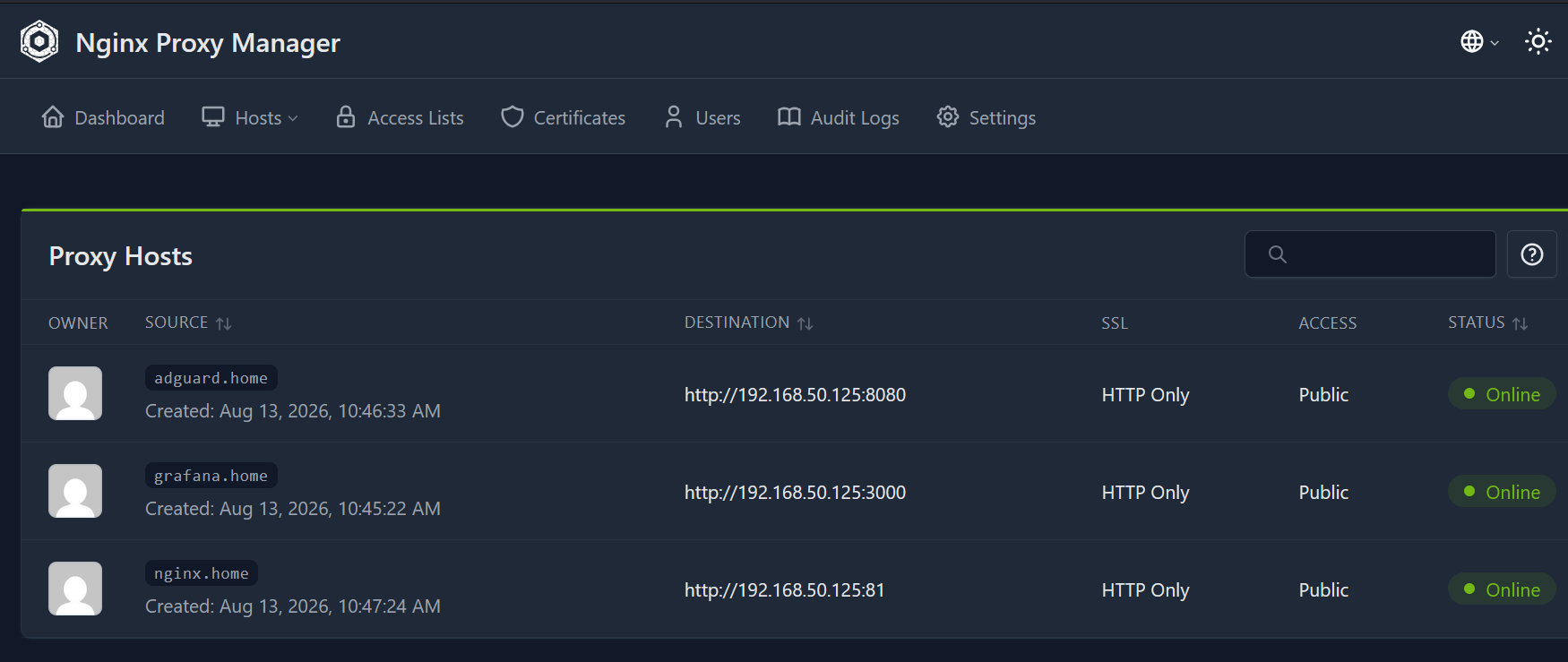 Fig. 3. List of configured proxy hosts in Nginx Proxy Manager
Once you save the settings, Nginx Proxy Manager will automatically intercept requests to grafana.home and proxy them to the correct port.
🔒 Security and Hardening
Since we are configuring the servers ourselves, it is important to practice good digital hygiene to leave no loopholes for attackers:
- Local DNS Only: Our
.homedomains exist exclusively inside your home network. The public internet knows nothing about them. This makes them completely invisible to external scanners and hackers. - Do Not Expose Admin Panels on Your Router: The proxy manager control panel (port
81) and the AdGuard panel (port8080) must remain closed from the outside. Never forward these ports on your router (Port Forwarding). If remote access is needed, connect only via Tailscale or another secure VPN. - Local IP Addresses: Showing addresses like
192.168.50.Xin screenshots or articles is completely safe, as these are “RFC 1918” (private) IP addresses that do not route on the public internet. No hacker can connect to them from the outside.
Conclusion
Combining AdGuard Home and Nginx Proxy Manager makes managing your home server incredibly convenient. You get not only a clean ad-free internet experience for the whole family, but also beautiful, convenient navigation across all the services of your IT lab.